Goals
In your next assignment, you will write a PS/2 keyboard driver for your Pi. The primary goal of this lab is to get you set up with the keyboard to be ready to start on the assignment.
During this lab you will:
- Wire up a PS/2 keyboard to the clock and data gpios on your Mango Pi.
- Watch the signals from the keyboard using a logic analyzer.
- Print out the scancodes sent by the keyboard.
- Write code to read the 11 bits of a PS/2 scancode.
- Explore C function pointers.
Prelab preparation
To prepare for lab, do the following:
- Be up to date on recent lecture content: Keyboard
- Review this document detailing the PS/2
protocol.
- Print a copy of this PS/2 key code chart and have it on hand.
- Install
Saleae Logicapplication.- We will be using the
Saleae Logicapplication to visualize the signals captured by the logic analyzer. Saleae is a company known for its high-quality logic analyzers and software. Here is the page with download links for Saleae Logic. Download and install the version for your platform. If using WSL, download the Windows version.
- The Linux version may require some additional setup. After downloading the Saleae AppImage, run the following commands in the
Downloadsfolder (or wherever the AppImage was downloaded):./FILE.AppImage --appimage-extract cd squashfs-root sudo chown root:root chrome-sandbox sudo chmod 4755 chrome-sandbox ./Logic - Replace
FILE.AppImagewith the actual name of the downloaded AppImage file.
- We will be using the
- Organize your supplies to bring to lab
- Bring your laptop (with full battery charge) and entire parts kit.

Lab exercises
0. Pull lab starter code
Change to your local mycode repo and pull in the lab starter code:
$ cd ~/cs107e_home/mycode
$ git checkout dev
$ git pull code-mirror lab5-starter
1. Connect PS/2 plug, power up keyboard
In lab, we will distribute a PS/2 keyboard and plug board to each of you. (Click photos to enlarge).
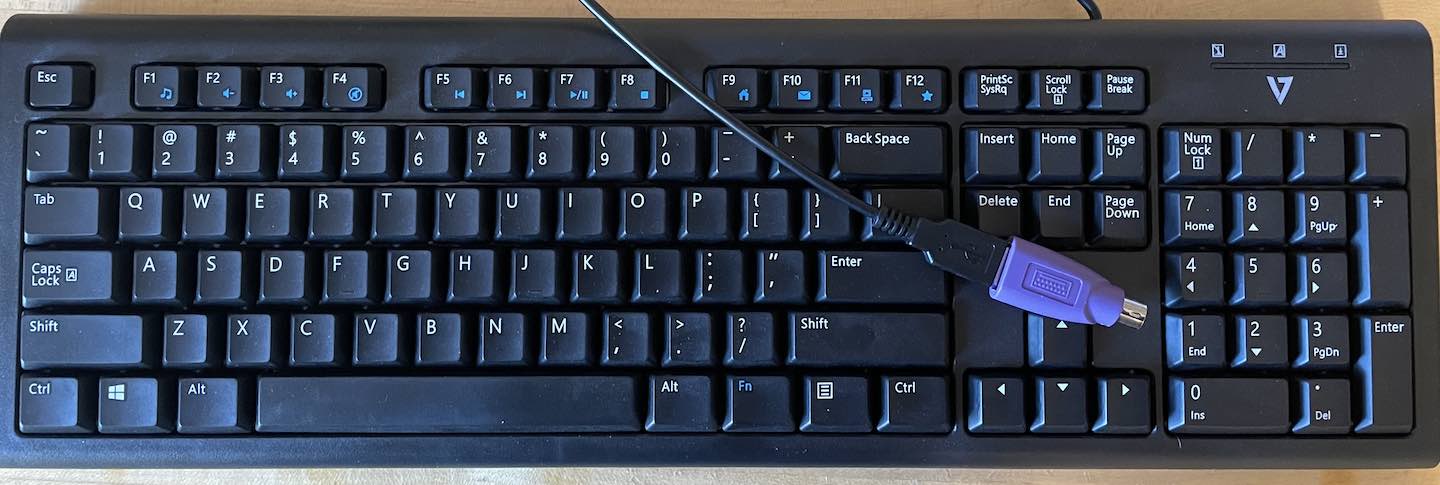
- PS/2 keyboard (including USB-to-PS/2 adapter perma-attached with hot glue)
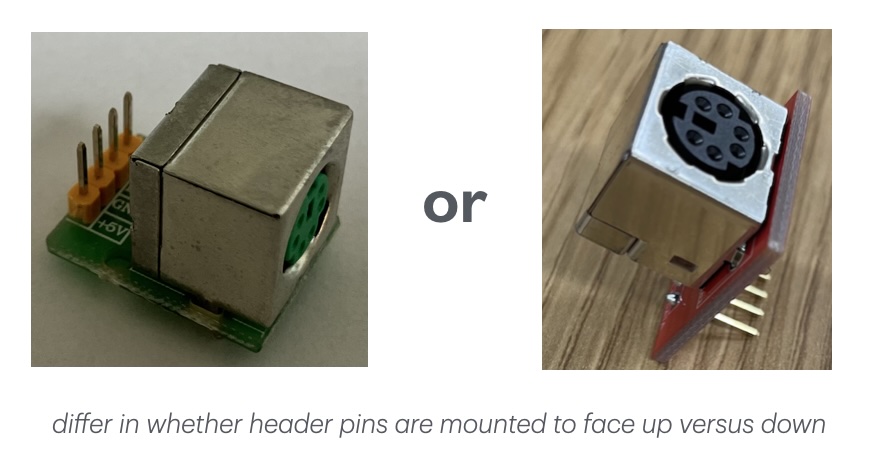
- PS/2 plug board
The keyboard and plug board are lent to you, take them home to work on the upcoming assignments. Please take care of keyboard and plug board, you must return both at the end of the quarter. Write your name and keyboard id on the keyboard clipboard. 1
Most modern keyboards use the Universal Serial Bus (USB). The USB protocol is quite complicated: a typical USB keyboard driver is 2,000 lines of code – ouch! In this course, we instead use a PS/2 keyboard because PS/2 is a simple serial protocol that is easy to decode. The PS/2 keyboard appeared on the original IBM PC. Computers have long since stopped including a PS/2 port as standard equipment; we wire our own connection from a PS/2 plug board to the GPIO pins on the Pi.
Sourcing genuine PS/2 keyboards has become an archaeological expedition for us. We use a particular modern USB keyboard that can also operate in PS/2 mode. The keyboard has a wired USB connector and a passive USB-to-PS/2 adapter. We use hot glue to attach that adapter, so the keyboard acts as a wired PS/2 keyboard.
There are two common PS/2 devices: a keyboard and a mouse. A PS/2 plug is a 6-pin mini-DIN connector. By convention, a mouse connector is green and a keyboard connector is purple, but the connectors are otherwise identical. Inspect the inside of the mini-din PS/2 connector on the keyboard. It has 6 male pins and a plastic tab (SHLD) to guide inserting the plug with the correct polarity. Two of the pins are NC (not-connected); the others carry VCC, GND, DATA and CLK.
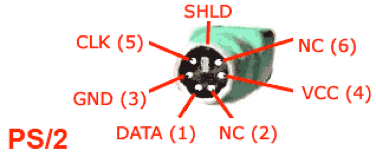
Grab the PS/2 plug board and look at its four-pin header. Each pin on the header corresponds to one of the four connected pins of the PS/2 plug. The circuit board has traces to connect each pin. On the red plug boards, the CLK, DATA, and GND traces are on the top side of the board and the VCC trace on the underside. On the green plug boards, all four traces are on the bottom side of the board.
From your parts kit, pick out five female-to-female jumpers: one red, two black, one white, and one purple. You'll be following these color conventions: red for VCC, black for GND, white for CLK, and purple for keyboard DATA.
Use the red and black jumpers to supply power to the plug board.
- insure your Pi is powered off before fiddling with wiring!
- use a red jumper to connect the VCC pin on the plug board to a 5V pin on the Mango Pi header
- you will first need to remove the small white jumper cap that covers the 5V pins
- use a black jumper to the GND pin on the plug board to a GND pin on the Pi
- triple-check these connections to confirm they are correct (wiring a short circuit through the keyboard can cause fatal damage to the keyboard and/or your Pi; ask us how we know…).
Plug the male PS/2 end of your keyboard cable into the female socket on the plug board, being sure to rotate to correct position to align the plastic tab. If you try to force a misaligned plug, you can bend the pins or break off the tab. Please do not do this!
Power on your Pi and the keyboard should flash the three LEDs in the upper corner when it powers on. These LEDs are not very bright and the flash is brief. You may get a better view if you use your hand to block the ambient light.
If your keyboard does not power on, grab a staff member to help diagnose.
2. Use a logic analyzer to visualize keyboard signals
We have a bin of logic analyzers available in lab. Use an analyzer and USB cable to do these exercises in lab, be sure to return to us before leaving lab.
A logic analyzer allows you to examine the signals sent by the keyboard. Here is an inexpensive 8-channel logic analyzer made by Hiletgo (click photo to enlarge):
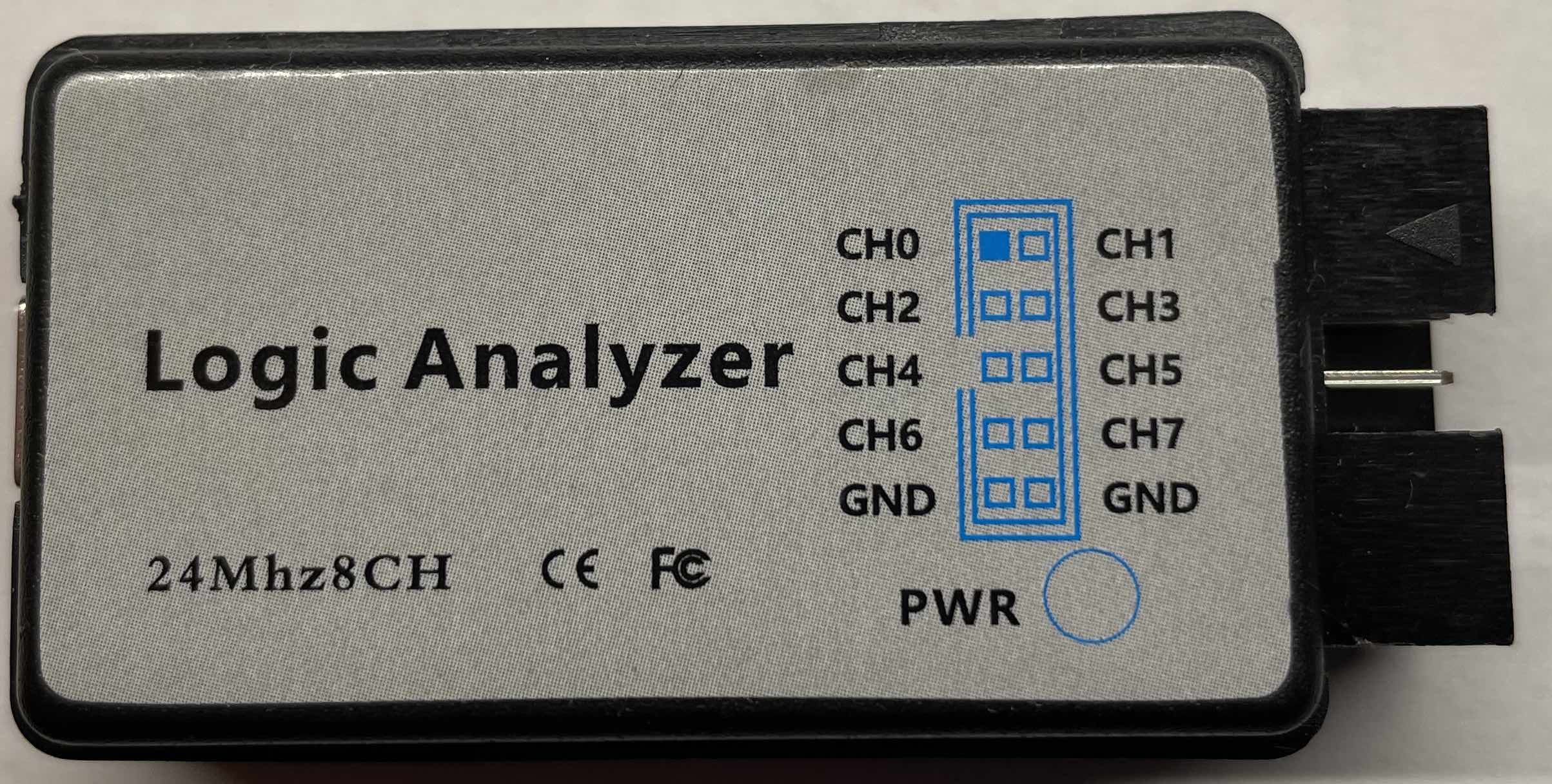
The logic analyzer has a 10-pin header. The pins correspond to the different signals or channels to be monitored by the analyzer. The analyzer can read up to 8 simultaneous channels.
Read
the analyzer label to learn its pin layout and identify which pins correspond to the two lowest-numbered channels. Some of our logic analyzers label the channels using a 0-based index (Ch0, Ch1, … Ch7) and others use 1-based index (Ch1, Ch2,… Ch8). In either case, identify the two lowest-numbered channels. We will refer to the two lowest-numbered channels as Ch0 and Ch1 but they may be labelled Ch1 and Ch2 on the analyzer you are using.
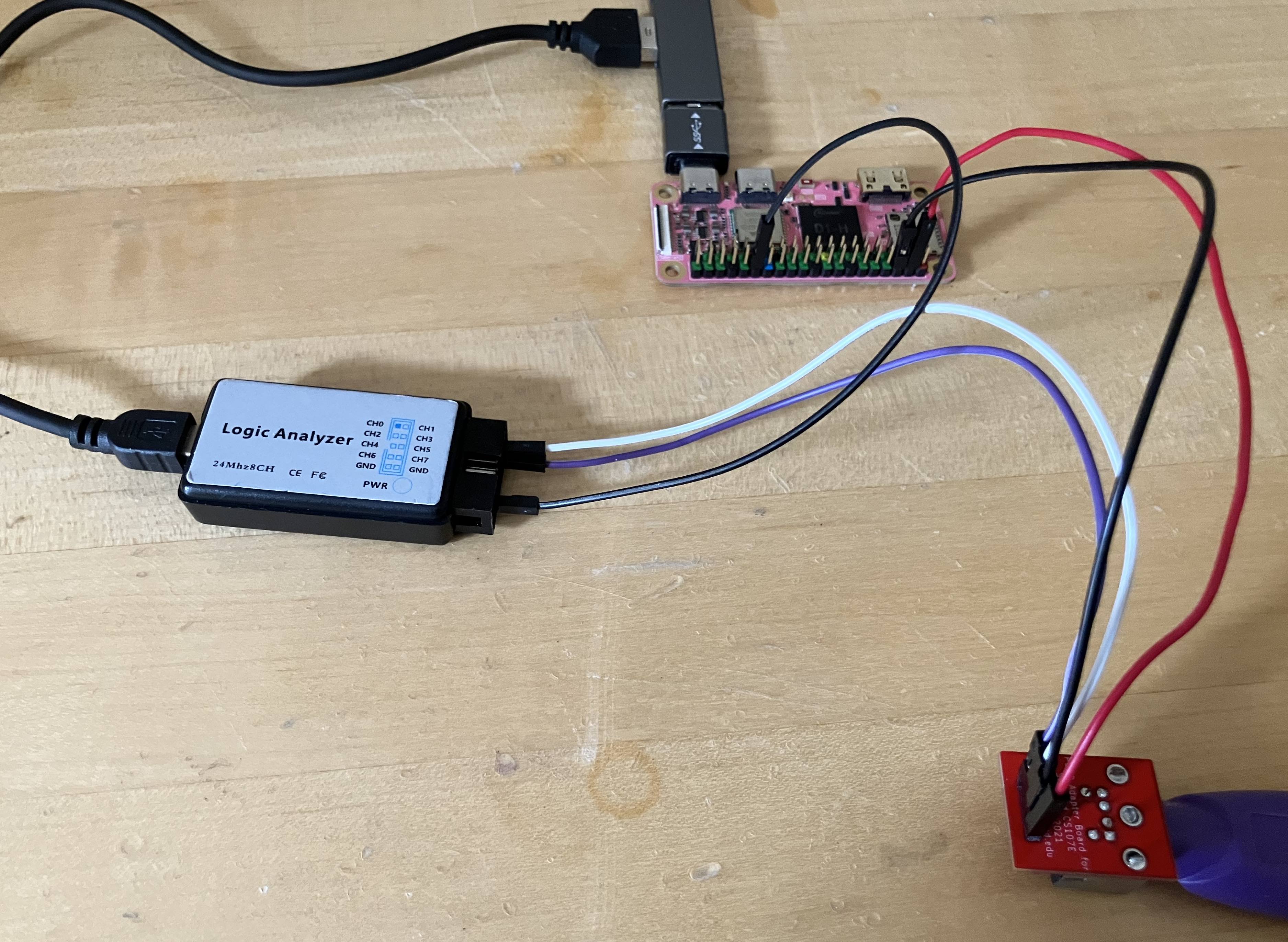
With Pi powered off, wire the clock and data pins from your plugboard to the logic analyzer.
- use a white jumper to connect the CLK pin on the plug board to
Ch0on the analyzer - use a purple jumper to connect the DATA pin to
Ch1
You must also ground the logic analyzer. Voltage is relative: when looking at a signal, the reading is the difference from a reference voltage, which in this case should be the ground provided by the Pi. If you don't tie the logic analyzer's ground to the Pi's ground, it will be measuring voltage against whatever happens to be on the pins, which can act as tiny antennae. Connect the ground on your Pi to the ground on the analyzer.
- use a black jumper to connect an open ground pin on your Pi to a ground pin on the analyzer
Below is a photo of the circuit (click photo to enlarge). The plug board power (red) and ground (black) are connected to the Pi. The plug board CLK (white) and DATA (purple) are connected to channels 0 and 1 of the logic analyzer. The logic analyzer ground (black) is connected to Pi ground. Double-check to confirm your connections before powering up your Pi.
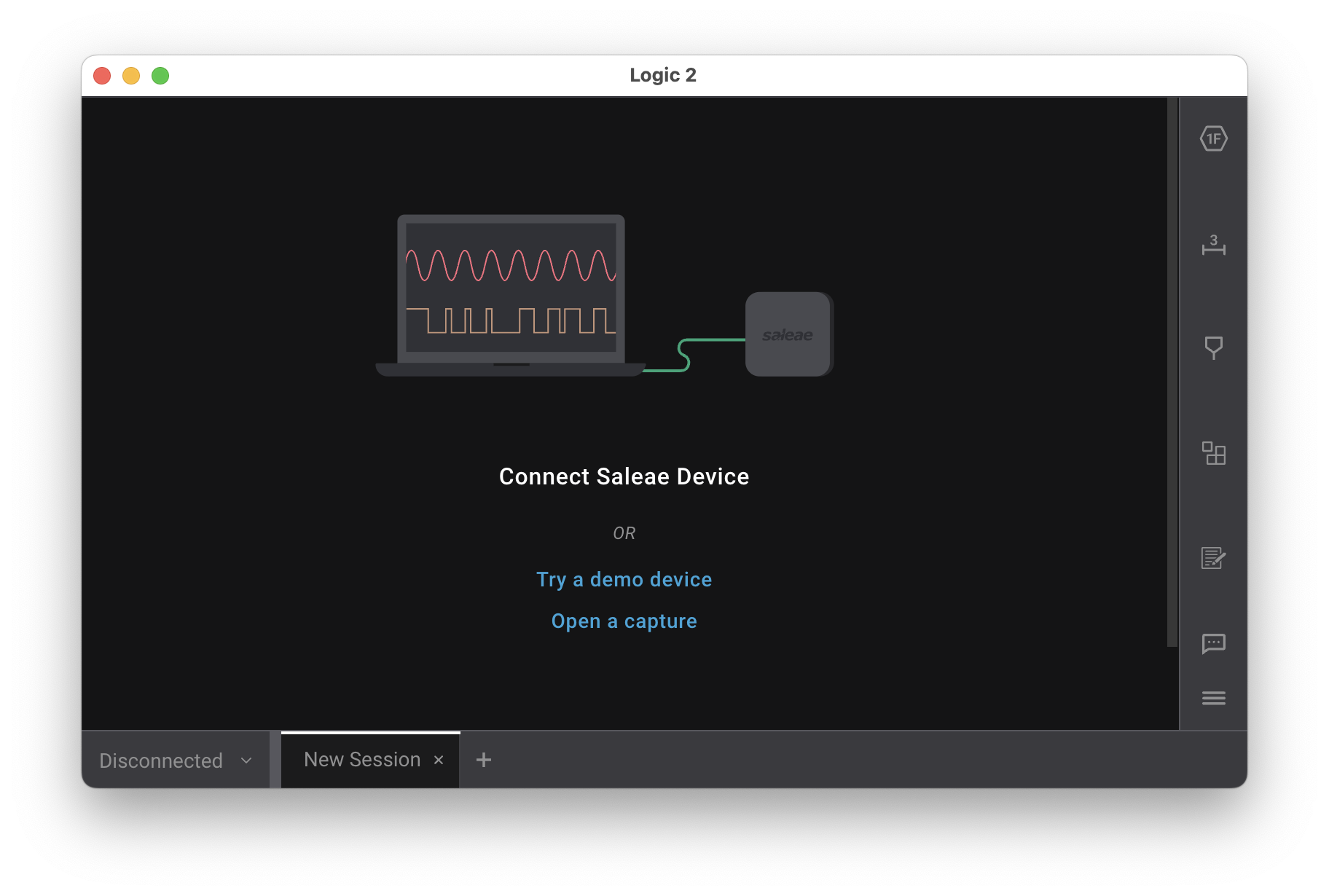
Open the Saleae Logic application you installed on your laptop as part of prelab preparation. When the logic analyzer is unconnected, the start-up screen is similar to this:
Connect the USB cable from the mini-USB port on the logic analyzer to an open USB port on your laptop.
Hardware hiccup: don't overload the hub! While it would be convenient to plug the USB-A end of the logic analyzer cable into the USB hub alongside the Pi and usb-serial, sadly, the combo is more than the hub can manage. Instead, plug the logic analyzer cable directly into a USB port on your laptop. We have USB-C-to-A adapters if your laptop only has USB-C ports.
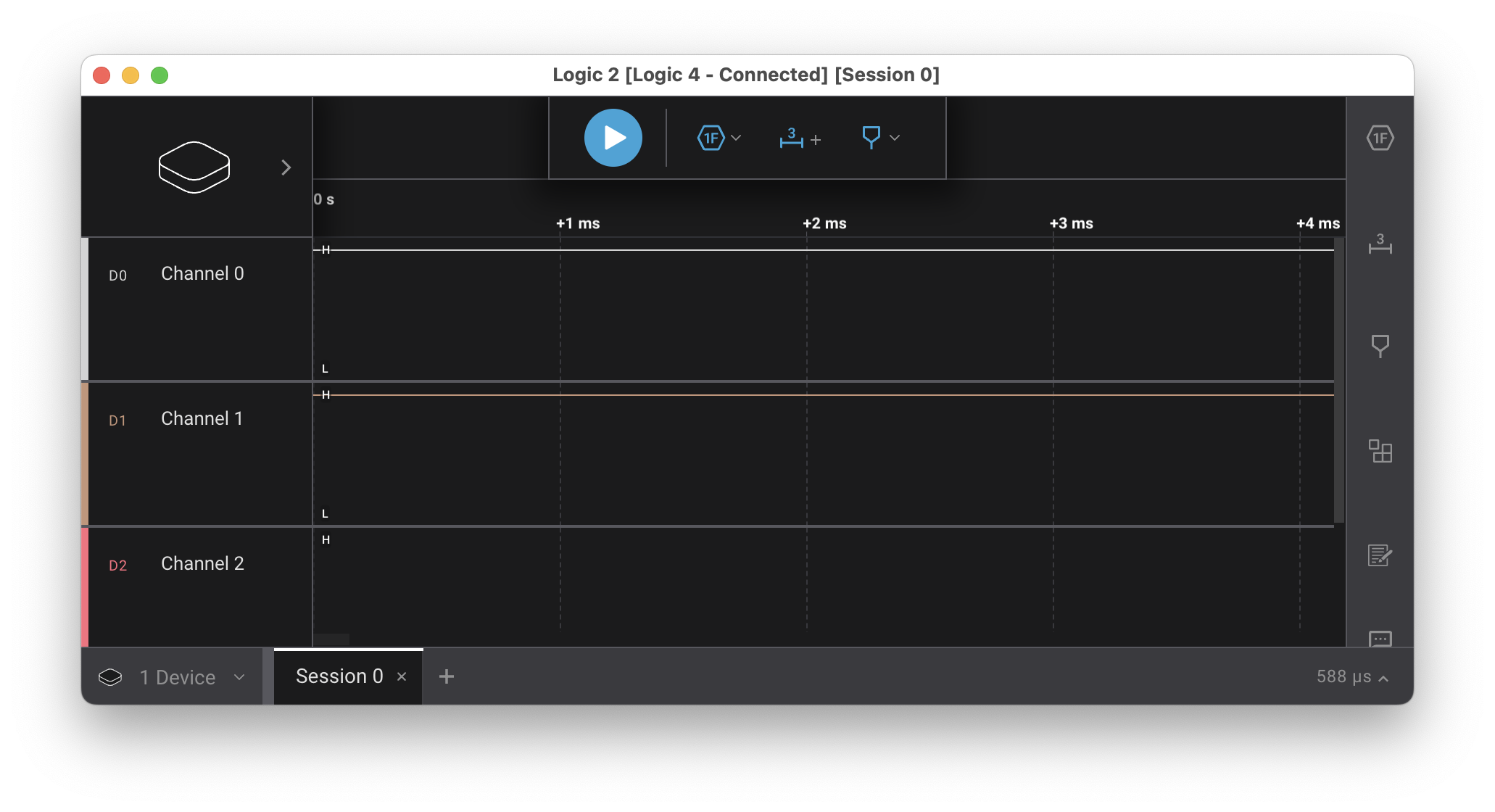
When the logic analyzer is connected, the Logic screen will change to this:
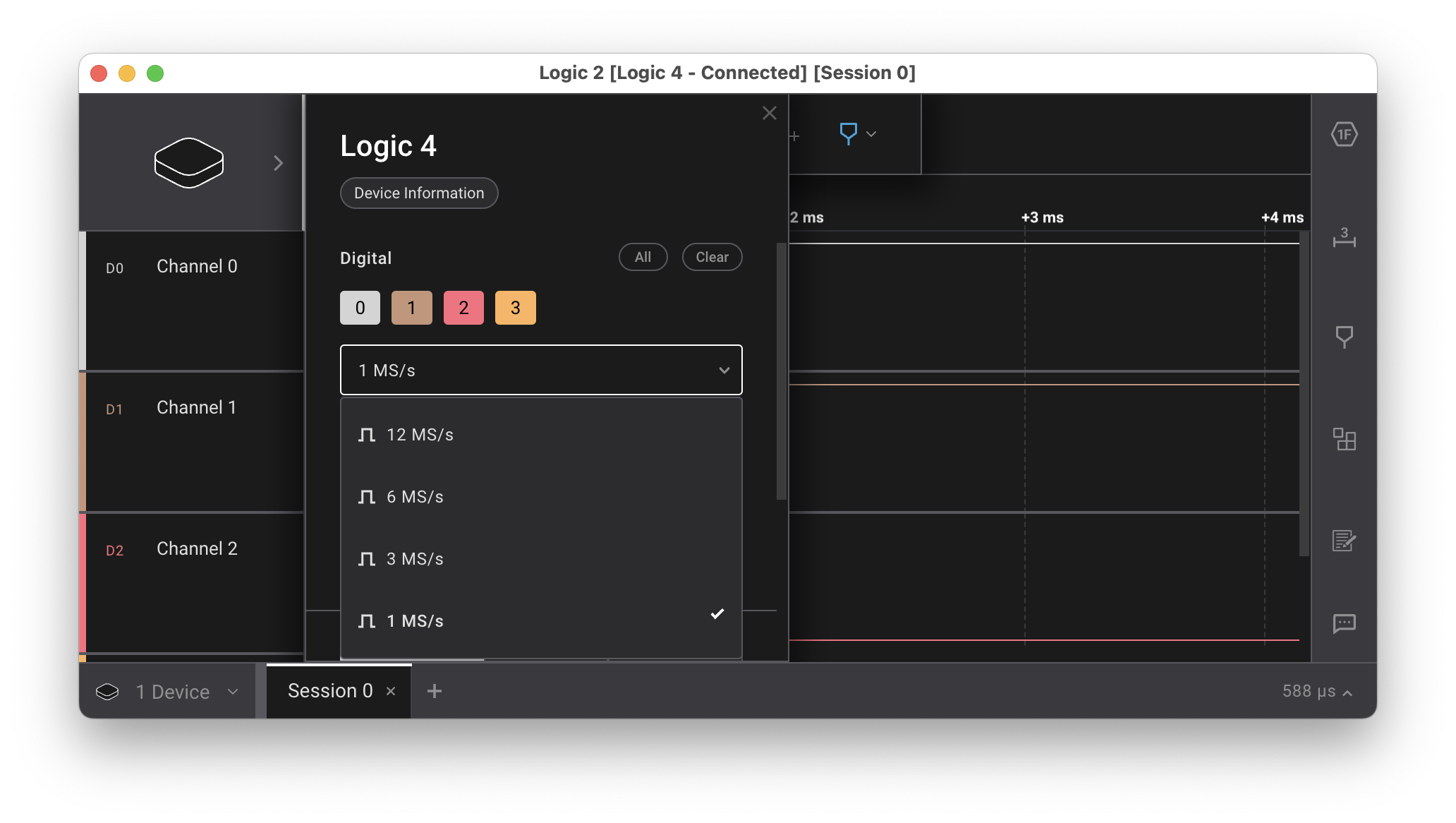
Press the flat cube icon in the upper right to access the device settings. Find the sample rate control in the settings pane; it is labeled something like 24 M/s. Adjust the sample rate down to 1 M/s (1 million samples per second is plenty, attempting to sample at a higher rates can sometimes produce errors). Close the settings pane.
The blue triangle at the top is the play/stop button. Press play to start reading the signal. Type a few keys on the PS/2 keyboard, then press stop to end the recording. The Logic window will show the signals recorded on channels 0 and 1. Zoom in and out and pan left and right to view the signal details. You should see the characteristic pattern of the PS/2 protocol.
The Saleae Logic application has signal analyzers for common protocols. Along the top of the window, click the hexagon labeled 1F to
display the "Add Analyzer" pane. Type "PS" to filter the list of analyzers and select "PS/2 Keyboard/Mouse". Configure CLK on
channel 0 and DATA on channel 1. The captured data is now decoded according to
the PS/2 protocol and interprets the sampled signal as scancodes.
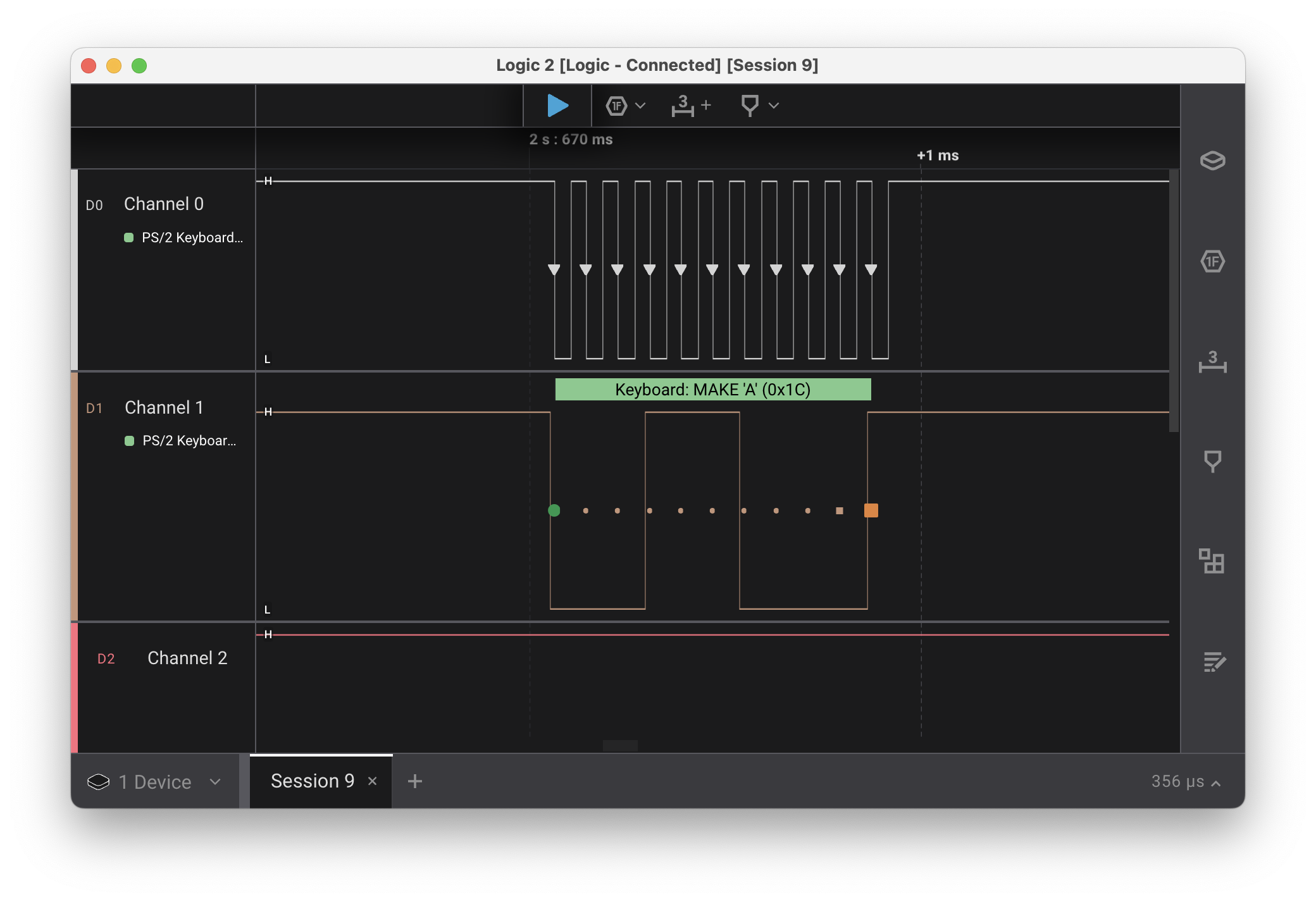
Hover over the visualization of the PS/2 clock channel to see the signal timing data. How far apart is each falling clock edge? At what frequency is the PS/2 clock running? Is the keyboard operating with the range dictated by the spec?
You're ready to answer this check-in question2.
3. Run keyboard test
Now rewire the circuit to connect the clock and data lines of plug board to the Pi, instead of the logic analyzer.
Turn off power to the Pi and disconnect the logic analyzer and return to us. Re-use the white and purple jumpers to connect the plug board clock and data to the Mango Pi keyboard clock and data gpios.
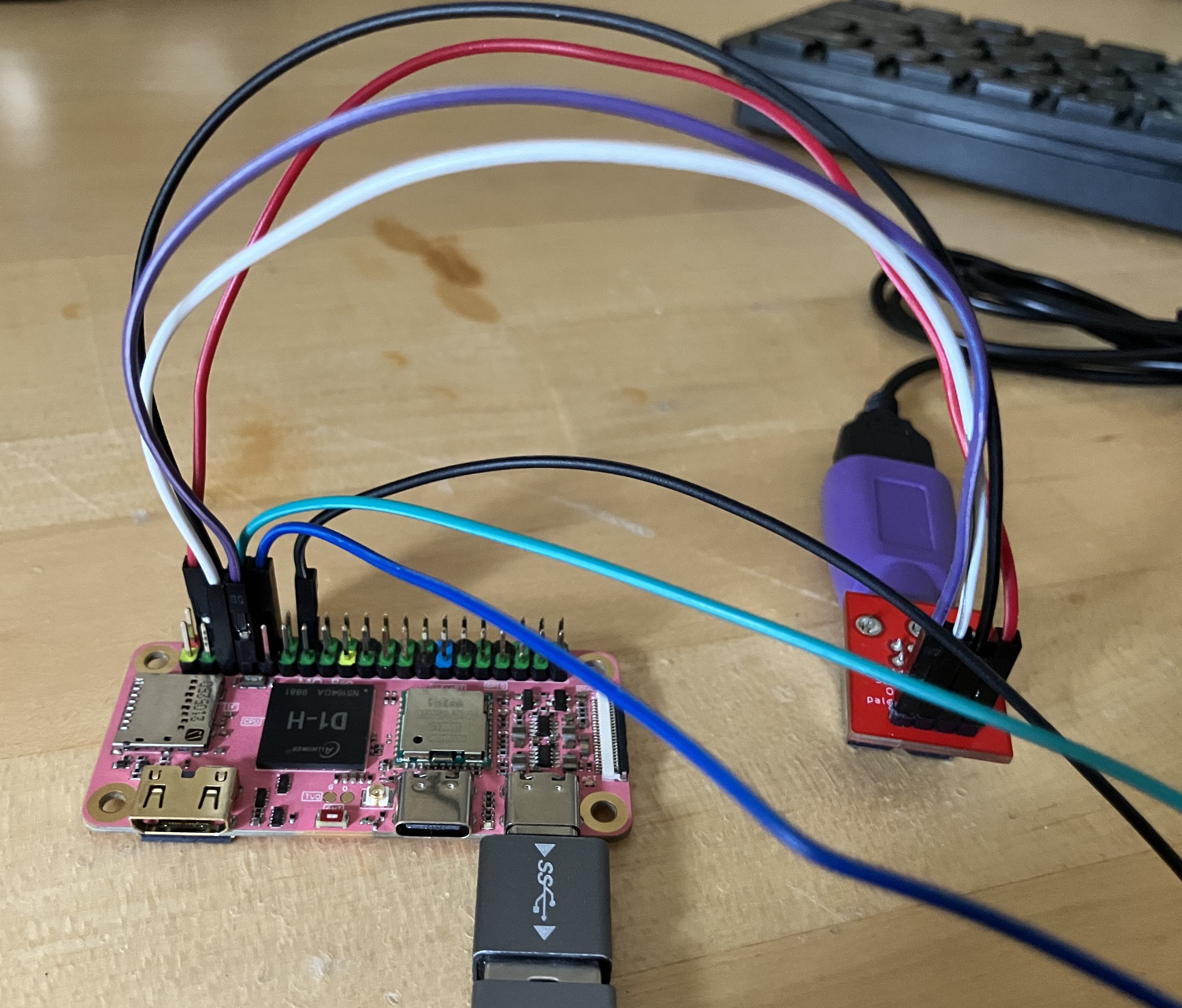
Review the keyboard module interface keyboard.h to see which gpio pins to use for the keyboard clock and data lines. The white jumper (CLK) connects to KEYBOARD_CLOCK (PG12) and the purple jumper (DATA) to KEYBOARD_DATA (PB7). Find the corresponding header pins on the Mango Pi pinout.
$ pinout.py keyboard
All four jumpers (red, black, white, purple) connect from the plug board to the Mango Pi as shown in the photo below (click photo to enlarge). Double-check to confirm your connections before powering up your Pi.
The keyboard_test application uses the reference implementation of the
keyboard driver. Let's try it now:
$ cd lab5/keyboard_test
$ make run
Type keys on the PS/2 keyboard and the program should print the scancodes received. If you aren't getting events, check your wiring.
Note that scancodes are not ASCII characters. Instead, these values relate to the physical placement of the key on the keyboard. Inside the keyboard, there's a 2-D matrix of wires that generates the scancode for a given key.
Each key press and key release is reported as a distinct action. Press a key;
the keyboard sends a scancode. Release the key; the keyboard sends another
scancode; this code is same as the first one, except it is one byte longer: it
has a leading 0xF0. Tap the z key now. The keyboard sends 0x1A on key
press, followed by 0xF0 0x1A on key release.
If you press z and hold it down, the keyboard enters auto-repeat or
typematic mode where it repeatedly generates key press actions until you
release the key. Press and hold zand watch for the repeat events to start
firing. About how long does it seem to take for auto-repeat to kick in? At
about what rate does it seem to generate auto-repeat events?
Press and hold one key, then press and hold another without releasing the first. Which key repeats? What happens when you release that key? Try those same actions on your laptop's keyboard. Does it behave the same way?
Type single keys to observe the scancodes for press, release, and auto-repeat. Then try typing modifier keys like Shift and Alt, singularly and in conjunction with other keys. Does shift being pressed changed what scancode is sent by a letter key? What about caps lock? Observe the sequence of scancodes to suss out what functionality is provided by the keyboard hardware and what features are to be implemented in the keyboard driver software.
You're ready for this check-in question 3
Side note on N-key rollover
- The PS/2 protocol reports each key action as a separate scancode. If the user simultaneously presses N keys, a PS/2 keyboard sends N scancodes, one for each key. In contrast, the USB protocol operates by asking the keyboard for the current state and the keyboard's answer is limited to reporting at most 6 pressed keys, i.e., USB is constrained to 6-key rollover. Try observing this on your laptop keyboard (which is likely USB). Open your editor or use the Mac "Keyboard Viewer" to visualize (In Preferences->Keyboard, enable "Show keyboard and emoji view in menu bar", then choose "Open Keyboard Viewer" from input menu). Hold down one letter, then two, and so on, and you'll reach a point at which no further key presses are detected.
- While the PS/2 protocol has no limitations and in theory allows full N-key rollover, in practice, the internal wiring of many PS/2 keyboards shares circuitry among keys rather than wiring each key independently. As a result, as you hold down more and more keys on your PS/2 keyboard, you'll likely reach a point where additional keys are mis-detected. Try it now on your PS/2 keyboard. How many simultaneous keys can your PS/2 keyboard reliably detect? What happens when you go past that limit?
- Here is a good explanation from Microsoft Research on N-key rollover and keyboard circuitry if you want to learn more.
4. Implement ps2_read
In this lab exercise, you will get a start on writing the keyboard driver that will be a part of your next assignment. We want you to do this task in lab because working at the intersection of hardware and software requires a specialized kind of debugging which can be tricky; it helps to have staff around!
Change to the directory lab5/my_keyboard. This is the
same application as lab5/keyboard_test, except that rather than
using the reference implementation, you will write your own code to
read a scancode.
Browse the headers for ps2.h and keyboard.h to review the module
documentation. The ps2 module manages the low-level communication with a PS/2
device. The keyboard module layers on the ps2 module to interpret scancodes
into typed keys. During lab, you will implement an initial version of the
function ps2_read.
Open ps2.c in your editor. The function ps2_new has already been
written for you. This function configures a new PS/2 device for the specified
clock and data gpio. In the library modules we have seen thus far, we have used
global variables to store data that is shared across the module. A single set
of global variables for the ps2 module does not work, as each device needs its
own independent settings (i.e clock and data gpio). ps2_new creates a new
struct to hold the per-device settings. Because that memory needs to be
persistent after the function call exits, it allocates memory using your shiny
new malloc . The rest of the function is setting the clock and data GPIOs as
inputs and enabling the internal pull-up resistor so these pins default to
high, as expected in the PS/2 protocol.
Once you understand the given code in ps2.c you are to implement the function ps2_read
to read the bits that make up a scancode. The basic operation is to wait for
the falling edge on the clock line and then read a bit from the data line.
You will need to do this 11 times for a scancode, but rather than duplicate that code 11 times,
we suggest you define a private helper function read_bit. The helper waits until observes the transition from high to low on
the clock line and then reads a bit from the data line. Unifying repeated code
into a shared helper aids readability and maintainability; this is a good habit
to adopt.
A scancode transmission consists of 11 bits: a start bit (always low), 8 data
bits, a parity bit, and a stop bit (always high). The
ps2_read should verify that first bit read is a valid start bit, e.g. is 0.
If not, discard it and read again until a valid start bit is received. Next,
read the 8 data bits and lastly, read the parity and stop bits. In which order do the 8 data bits arrive?
If you're not sure, take a look at the signal you captured for the keyboard's data line with the
logic analyzer or look back at the PS/2 protocol documentation linked in the prelab. (Although working code for ps2_read was demoed in the Keyboard lecture, we think you will learn more by writing it for yourself than blindly copying, just sayin'…)
Error-checking in
ps2_readIn the starter version you write during lab, the only error-checking is to detect and discard an invalid start bit. For the assignment, your driver will implement additional error-checking for parity, stop bit, and timeout. During lab, read the parity and stop bits and assume they are correct.
The function keyboard_read_scancode in keyboard.c simply calls ps2_read
to get the next scancode. This means that once you have a working ps2_read,
your keyboard_read_scancode should automatically spring to life. Build and
run the application and see that it receives each scancode sent by the
keyboard.
If your implementation of ps2_read is working
correctly, you should be able to compile your application and have it act
identically to the keyboard_test version you tested in Step 3. If you run
into any snags, please be sure to get help from us now so that you'll be able
to hit the ground running on the assignment. Show us your working code! 4
Caution on adding debug code in timing-sensitive passages Back in lab1, you estimated how many instructions the Pi was executing (~400 million/second). Earlier in this lab, you measured the time of one cycle of the PS/2 clock. Work out how many instructions the Pi can execute in that time. Now consider a call to
printf. Make a ballpark estimate of how many instructions are executed to process and output each character and multiply that count by length of the format string for a rough total count. Imagine adding a debug print statement to your keyboard driver after reading one bit and before reading the next. What would be the consequence if thatprintfcall takes longer to execute than the time before the next bit is sent by the keyboard? To ensure you stay within budget, best to limit debug output to a quick jot of a few characters viauart_putchar. Keep this lesson in mind whenever working with code that has similar tight timing requirements.
Using a logic analyzer to "snoop"
In this lab, we connected the keyboard clock and data lines to either the logic analyzer or to the Pi, but it's also possible to connect to both simultaneously! You would run clock and data jumpers from the plug board to a breadboard and then fan out two connections from there, one to the logic analyzer and another to your Pi. Your Pi receives the data while the same signal is simultaneously captured by the logic analyzer. This can be very useful during debugging as you can compare what your Pi thinks it's receiving with the ground truth of the logic analyzer capture. Using the logic analyzer to observe exactly what signals are sent while simultaneously seeing how your Pi interprets them is like having gdb for the pins! The logic analyzers are available in lab if you need to borrow one in the future.
5. C function pointers
When making a function call such as abs(4), the compiler emits a jal abs instruction that jumps to the address for the abs function. The address for each function is set by the linker when it lays out the sections and relocates symbols.
The ability to call a function by jumping to its address is not limited to use by the compiler – it's also available in the C language. You can create a variable of function pointer type, assign a function address to it and and invoke that function via pointer. The concept may seem a bit wacky at first, but allowing functions to be treated as data is a powerful feature with useful applications. The entire notion of object-oriented programming depends on this technique! You will use function pointers when implementing the shell module as part of your next assignment. Try this exercise as a warmup on using function pointers.
The directory code/dispatch contains a simple calculator module that can parse and evaluate the result of a string input such as "5+7". Review the functions calc_evaluate and apply_operation. The initial approach of apply_operation is to manually select the operator to apply using cascading if-else statements.
Edit the function apply_operation to add support for a new divide operator and add code to main.c to test it. The changes are not difficult, but the growing chain of individual cases and repeated code in apply_operation does not make for a pleasing design. Instead of adding further cases to apply_operation, let's re-work the design to dispatch via function pointer.
At the top of calc.h is this typedef:
typedef int (*binary_fn_t)(int, int);
This unusual declaration introduces a user-defined type called binary_fn_t. (This may be a good time to revisit the handy cdecl tool for help deciphering tricky C declarations). The type binary_fn_t is a pointer to a function that takes two int arguments and returns an int. You can assign a variable of type binary_fn_t to any function that matches the required prototype.
Here is a sample use of a binary_fn_t function pointer:
int max(int a, int b) {
    return a > b ? a : b;
}

void main(void) {
    binary_fn_t myfn;
    myfn = max;
    int m = myfn(8, 3);
    ...
myfn is a function pointer. The assignment myfn = max stores the address of the first instruction of max into the pointer variable. Calling myfn is implemented as a jump to the pointer address.
In the example above, the use of function pointer is roundabout, we could have just directly called max at compile-time. What makes this technique powerful is its ability to select among different options at runtime.
Read over the code for calc_add_operator and calc_init. The calculator module declares operators as a module-level static array. Each struct in the array associates an operator character with its function pointer.
Edit apply_operation to remove the cascading if-else for each operator. Replace with a loop that searches the operators array for the matching character and invokes its associated function pointer. Test to see your new calculator in action. You have just implemented a command dispatch table. What additional code is required to include divide to the command dispatch table?
A command dispatch table is a very tidy way to organization the calculator and makes it easy to add new operations. It is even extensible by the client. See how main.c adds its own power operator to the calculator, something that was not even possible in the original design. Neat!
Check in with TA
The critical task for this lab is to confirm you are able to read keyboard scancodes. Take your keyboard and plug board with you, plan to return both at the end of the quarter. The logic analyzer+cable stays in lab (not to take home).5

Lab 5: Keyboard Surfin'
Circle lab attended: Tuesday Wednesday
Fill out sheet and jot down questions/issues that come up. Check in with us along the way, we are here to help!6
-
Find the green id number marked on your keyboard. Write your name and keyboard id on the "Keyboard Checkout" clipboard. ↩
-
The PS/2 clock frequency must be in the range 10 to 16.7 kHz. To be within spec, what should time period between falling clock edges be? When you measured using the logic analyzer, what time period did you observe? Is your keyboard operating within spec? ↩
-
What sequence of codes is sent when typing capital
A? If you hold down both the shift key and 'a' key, what is the sequence of repeating codes is sent? ↩ -
Show off that your implementation of
keyboard_read_scancodecorrectly receives scancodes from your keyboard. ↩ -
Are there any tasks you still need to complete? Do you need assistance finishing? How can we help? ↩
-
Do you have any feedback on this lab? Please share! ↩