Due: Tuesday, April 21 at 5:00 pm
Goals
Your next assignment is to build a countdown clock using a four digit 7-segment display.
The goals of this assignment are to:
- Get started with bare metal programming in C.
- Begin building a simple modular library of useful functions for the Mango Pi.
- Practice writing and using test cases to validate your code's functionality.
- Learn how to access the RISC-V Control and Status Registers (CSR).
- Use your gpio and timer modules in the clock application.
Get starter files
Follow the git workflow to pull the assignment starter files into your repo:
$ cd ~/cs107e_home/mycode                 # change to local repo
$ git checkout dev                        # be sure on dev branch
$ git pull code-mirror assign2-starter    # get starter files
$ ls assign2                              # list files in new directory
Makefile  cstart.c     gpio.c     start.s                test_gpio_timer.c  timer_asm.s
clock.c   extension.c  memmap.ld  style_reflection.txt   timer.c
The assign2 directory contains these files:
- Files you will edit:
clock.c: your countdown clock application programgpio.c,timer.c,timer_asm.s: implementation of the gpio and timer modulestest_gpio_timer.c: test program with your unit tests for gpio and timerREADME.md: edit this text file to communicate with us about your submissionstyle_reflection.txt: a text file that you will edit for your responses to the style reflection promptsextension.c: Edit this file to implement extension (if you choose)
- Files you will use as-is:
Makefile: rules to build clock application (make run) and unit test program (make test)cstart.c,start.s,memmap.ldare the support files needed for a bare metal C program. A bit later in the course, we will study these files to understand how they work and why they are necessary. You can read over these files now to get a sneak preview, but don't worry if you don't fully understand them yet.
The make run target builds and runs the clock application
clock.bin. The make test target builds and run the test program
test_gpio_timer.bin, where you will add all of your unit tests. You will likely focus on using make test early in development. After you have completed and tested your library modules, you will then switch to using make run to work on your clock application.
Modular design
The gpio and timer modules provide access to two of the Mango Pi peripherals. The gpio module has routines that control the GPIO pins and the timer module retrieves the system tick count. Both modules are used by the clock application, but, more broadly, they are designed to be reusable in any future application that requires similar functionality. These two modules are the first of many more to come. By the end of the quarter, you will have implemented a complete set of modules that form a library of core functions for your Mango Pi.
A module is divided into an interface and its implementation. The module
interface is in its header file e.g. gpio.h for the gpio module. The header file lists the public functions and gives the name, prototype, and documentation for each. The implementation for the functions is in the corresponding gpio.c file.
Separating interface and implementation is a fundamental software engineering practice that embodies the principle of abstraction. The interface describes the module functionality in way that allows the client to use the features without having to think about the underlying code that implements it. This separation also permits changing the implementation – this may become valuable towards the end of the course if you want to swap out your implementation for a reference one written by the staff.
For the gpio and timer modules, we specify the module interface; it is your job to write the module implementation to match the provided specification. The interface documentation in the header files is written for a client of the module. The client needs an overview of what functionality is exported by the module and information about how to use the functions and what behavior to expect from them. The interface does not describe any insider info of how the function gets its job done; those details are private to the implementation.
Where are the header files? The module header files are stored in
$CS107E/include. Change to that directory and list to see the filenames. Usecatto view the contents of a file. You can also browse the header files on this website. Note you should should never edit/modify the cs107e header files, the interface is fixed and is not to be changed.
You will edit the source files gpio.c timer.c and timer_asm.s to complete the private implementation of the modules. You should not export additional public gpio_ or timer_ functions. However, you can add your own private helper functions by declaring those functions at the top of the C file with the static keyword to make them private and accessible only to the implementation.
The source file clock.c will contain the application program that operate the clock. The clock application does not directly access the peripherals, but instead calls on the public functions of the gpio and timer modules. There is no required interface for the clock application, but you should strive for a clean and well-decomposed program that would make your CS106 section leader proud.
Testing
The CS106B test cases were written in SimpleTest; in CS107e, our poor man's version uses assert, but we share the same core values: write lots of unit tests and use a test-as-you-go strategy. Learning and practice effective strategies for testing will serve you well as a software developer.
The make run target is configured to build and run the clock application program. The alternate target make test will build and run the test program in test_gpio_timer.c. Your first tasks are to implement the gpio and timer modules. To run tests against your modules, make test is the appropriate target to use. When working on the clock application, use the make run target.
The test_gpio_timer.c program just runs unit tests. The main() function makes a series of calls to gpio and timer functions and uses assert() in order to validate the operations.
Recall from Lab 2 how assert() used the blue ACT LED on the Pi as a status indicator. If an assert fails, the program stops and blinks the ACT LED. If all asserts pass and the program finishes normally, the blue LED turns off to signal all is well.
The starter code in test_gpio_timer.c has a just a few simple tests. You are to
extend the test program with many additional tests of your own to thoroughly exercise the functionality of your modules. Unit-testing a module in isolation before integrating it into an application is a key strategy for managing the development process as programs become larger and more complex.
Learning how to effectively test your code is an important component of growing your programming skills, and we want to be sure to reward you for your testing efforts. The breadth and depth of the test cases you add to test_gpio_timer.c will be assessed as one of qualitative metrics for your submission. But don't think of this as merely an arbitrary requirement to please your grader! Your investment in constructing a comprehensive set of test cases means you can find (and fix) more bugs, resulting in a submission of higher quality.
Core functionality
1. Implement and test gpio module
To build your Larson scanner, you controlled the gpios PB0-PB7 by writing assembly code that directly manipulated the PB_CFG0 and PB_DAT device registers. Doing so in assembly is tedious and error-prone, wouldn't instead be neat to have C functions you could call to control a GPIO so you would no longer have to drop down assembly or dig through the user manual to find the right address. Writing a module of useful routines to control the GPIOs will be your first task of assignment 2.
Section 9.7 of the D1-H User Manual
contains the documentation for the Mango Pi GPIO peripheral. There are 88 multi-function GPIO pins that are organized into six groups (PB, PC, PD, PE, PF, PG). To control pin PB0, which is in the PB group, you access the bits for pin index 0 within the PB_CFG0 and PB_DAT registers. Each group has its own group-specific device registers. For example, to control PF3, you access the bits for pin index 3 within the PF_CFG0 and PF_DAT registers. The user manual lists the addresses of all gpio registers in a table on p.1080 and a few pages further gives the division of bits within each register. The code you write for the gpio module will incorporate those details inside the private implementation. But the client who uses your gpio module doesn't need to know anything about this! The client looks in the public interface and sees that gpio_set_output(pin) can be used to set the pin to output– easy-peasy!
Start by reading the module interface in the gpio.h header file (available in your repo $CS107E/include/gpio.h or browse gpio.h here). The header file declares the public functions and documents the expected behavior of each.
The eight functions exported by the gpio module are:
gpio_init,gpio_id_is_valid,gpio_set_input,gpio_set_output(written for you)gpio_set_functiongpio_get_functiongpio_readgpio_write
The starter code contains completed code for the first four functions, along with a few private helper functions. Start by reviewing all of the provided code and comments in gpio.c and ask questions if there is anything unclear. You are to complete the module by implementing the remaining four public functions.
We recommend starting with gpio_set_function, that configures a pin to a selected function. As you recall from assignment 1, you configure a pin by changing the appropriate bits in the associated CFG device register (e.g. PB_CFG0 for pin PB0). Each group has its own separate CFG registers, i.e. PB_CFG0 is distinct from PC_CFG0. Within a group, each CFG register is associated with up to eight pins. Pins with indexes 0-7 are configured in the CFG0 register, pins 8-15 in the CFG1 register and pins 16-23 in CFG2 register. When updating the bits for a given pin, take care to not overwrite settings for the neighboring pins! This means you must first read the current state for all pins in this configure register, selectively modify the bits of interest, and write back the updated state.
Next write the companion gpio_get_function that returns the function a pin has been configured for. This operation reads the appropriate CFG register and extracts the function bits corresponding to this pin.
After implementing both set and get, you are ready to test. A simple first test case would be to configure a pin using gpio_set_function and read it back with gpio_get_function to confirm they match. You will write test cases using the assert you practiced with in lab2.
Open the test program test_gpio_timer.c in your editor and review the starter code version of test_gpio_set_get_function() to see a sample test case. Edit the main() and uncomment the call to test_gpio_set_get_function(). Use make test to build and execute the test program. If the test program runs to completion, the blue LED turns on briefly then off. If instead, you get a flashing blue light, this indicates an assert failed.
If you passed this first test, hooray! This is a good start but you will need to add many test cases of your own to thoroughly exercise your code and confirm the full range of functionality. Consider this partial list of expected behavior for gpio_set_function and gpio_get_function, each of these features corresponds to one or more test cases:
- get function should match what was set
- can configure all valid gpios
- valid gpio ids are in groups B-F and index 0-N (N depending on which group)
- see starter code
gpio_id_is_validfor per-group size
- can configure to any valid function
- input, output, alternate, reserved, etc.
- refer to
gpio.hheader file for valid options
- pins can be re-configured
- e.g. set to output then set to input then set to disabled
- each pin's configuration should be independent of others
- set one pin's function should not interfere with configuration of any others
What other cases can you think of to add to the above? As you add each new test case, build and re-run your test program to verify success.
Your functions should also be robust against client error. If given an invalid pin or function, do not blunder on to sadness. Refer to the gpio.h header file for specific guidance on expected handling for improper calls. Add test cases to confirm your functions are meeting the spec.
Pins with special function Some GPIO pins have specialized behavior to be aware of.
- At reset, all GPIOs are initially disabled excepting four F group pins that are configured for JTAG control.
GPIO_PF0,GPIO_PF1,GPIO_PF3,GPIO_PF5will be set to functionAlt 4. It is okay to reconfigure and manipulate these gpios for testing.GPIO_PB8andGPIO_PB9are initially disabled on reset. The process of initializing the DRAM viaxfel ddr d1(ormango-run) sets them to functionAlt 6. It is okay to reconfigure and manipulate these gpios for testing.- Four GPIOs (
GPIO_PG12,GPIO_PG13,GPIO_PE16, andGPIO_PE17) have an internal pull-up resistor that is always active unless the gpio is configured to output. When the pull-up is active, the pin has a low voltage that is enough for a connected LED to faintly glow and input to read as high. Setting the gpio to output turns off the resistor. We intentionaly chose not those gpios for clock connections because of possible confusion from this "semi-on" state. It is okay to reconfigure and manipulate these gpios for testing.GPIO_PD18controls the blue ACT LED on the Mango Pi board. The start sequence incstart.cconfigures it as output and turns it on. You can manipulate this gpio for testing; be aware these actions will affect the blue LED.- We recommend your Mango Pi is not connected to your clock breadboard while running unit tests on gpio (or be aware that the connected components will be reacting to the actions of your test cases).
Next up, implement the gpio_write and gpio_read functions. To set a pin's state to high or low, write a 1 or 0 to the corresponding bit in group's DAT register. To read a pin's state, read the corresponding bit.
Be sure to test the functions before moving on. In test_gpio_timer.c the function test_gpio_read_write() has a simple test that calls gpio_write to change a pin state and confirms gpio_read returns the updated state. Consider what other behaviors need to be confirmed and write additional test cases for each.
- read should match value that was written
- can read and write pins for any valid gpio id
- each pin's state is independent of others
- proper handling of invalid requests
Actually observing the GPIO activity is the most important test of all. If your implementations of gpio_write and gpio_read are both broken in same way, they could theoretically pass a round-trip unit test, but observing a lit LED or registering a button press is the real deal. For that, check out the test code in test_leds. After connecting the selected gpios to an LED circuit, run this test and verify that the LEDs turn on.
Having confirmed your now-comprehensive set of test cases, you have completed your first module for your libmango library – Congratulations! 🏆
The gpio module is a key component of libmango and several of the modules you will later implement will layer on gpio. Given your efforts to thoroughly test and vet the module, you will now be able to confidently rely on it going forward!
A note on volatile Writing code that correctly interacts with a peripheral will require understanding of the
volatilekeyword. Below declares a pointer to the address for the memory-mapped device register holding the PB group data:unsigned int *pb_data = (unsigned int *)0x02000040;The contents at that address can, and should, be qualified as
volatile:volatile unsigned int *pb_data = (unsigned int *)0x02000040;A
volatile unsigned intindicates the value can change due to events not apparent in the code.*pb_dataaccesses the current pin state through the device register. Whether the state is 0 or 1 depends on what is physically connected to the pin, which can change externally. If C code repeatedly reads from*pb_datawith no intervening write to the location, the compiler could make the assumption that the value will not change and cache the value of the first read and re-use it later. If type is qualified asvolatile, the compiler cannot make that assumption and must re-read the value for each and every access. Note thatvolatileis not something to throw about indiscriminately. Apply it thoughtfully and intentionally to those specific addresses that need to be treated in this special manner. Extraneous use ofvolatilecan be misleading and will reduce performance as it disallows the compiler from making optimizations. Review the recommended readings on volatile from the C Pointers lecture.
2. Implement and test timer module
The clock application needs to determine the passage of time. The RISC-V specification requires a machine counter mtime that tracks a tick count incremented at constant frequency (documented in Section 3.1.10 of the RISC-V spec). On the Mango Pi, mtime is a 64-bit tick counter initialized to zero on reset and continuously incremented at a rate of 24Mhz (i.e. each tick is 1/24 microsecond). This mtime register is not exposed as a memory-mapped address, instead access is provided as a CSR ("Control and Status Register"). The CSRs are documented in Section 2 of the RISC-V spec. CSRs are accessed using special assembly instructions. To read a CSR, the instruction is csrr (CSR read). csrr rd,which will copy the value of CSR which into the destination register rd. A CSR can be identified either by its name mnemonic or CSR number. In this case, either the name time or number 0xC01 can be used to refer to the read-only CSR that corresponds to the mtime machine register.
Read the header file timer.h to learn the interface of the timer module. The module implementation is split over two files: timer.c for the C code and timer_asm.s for assembly code. You have only one task for the timer module which is to implement the function timer_get_ticks in timer_asm.s to access the current tick count. This function must be implemented in assembly, as CSR can only be accessed using special instructions. The assembly routine is interoperating with C code, so be sure it correctly follows the function call ABI and properly shares registers.
Uncomment the call test_timer() in test_gpio_timer.c when ready to test. Use make test to build and run the test program. Consider what additional tests are needed for the timer module (there may not be much; it is a pretty simple module). Once both the gpio and timer modules are passing all of your tests, you're ready to tackle the clock application.
3. Wire up and test clock hardware
Next turn your attention to the hardware for your clock display.
- Complete the breadboard circuit for the display unit you started in Lab 2. Test your breadboard with jumper cables so that you know the wiring is correct before you connect it to the Mango Pi.
- In total, you will use twelve GPIOs on the Pi: seven to control the segments, four to control the digits, and one to read the state of the
button. Here is the schematic from lab (click to enlarge):
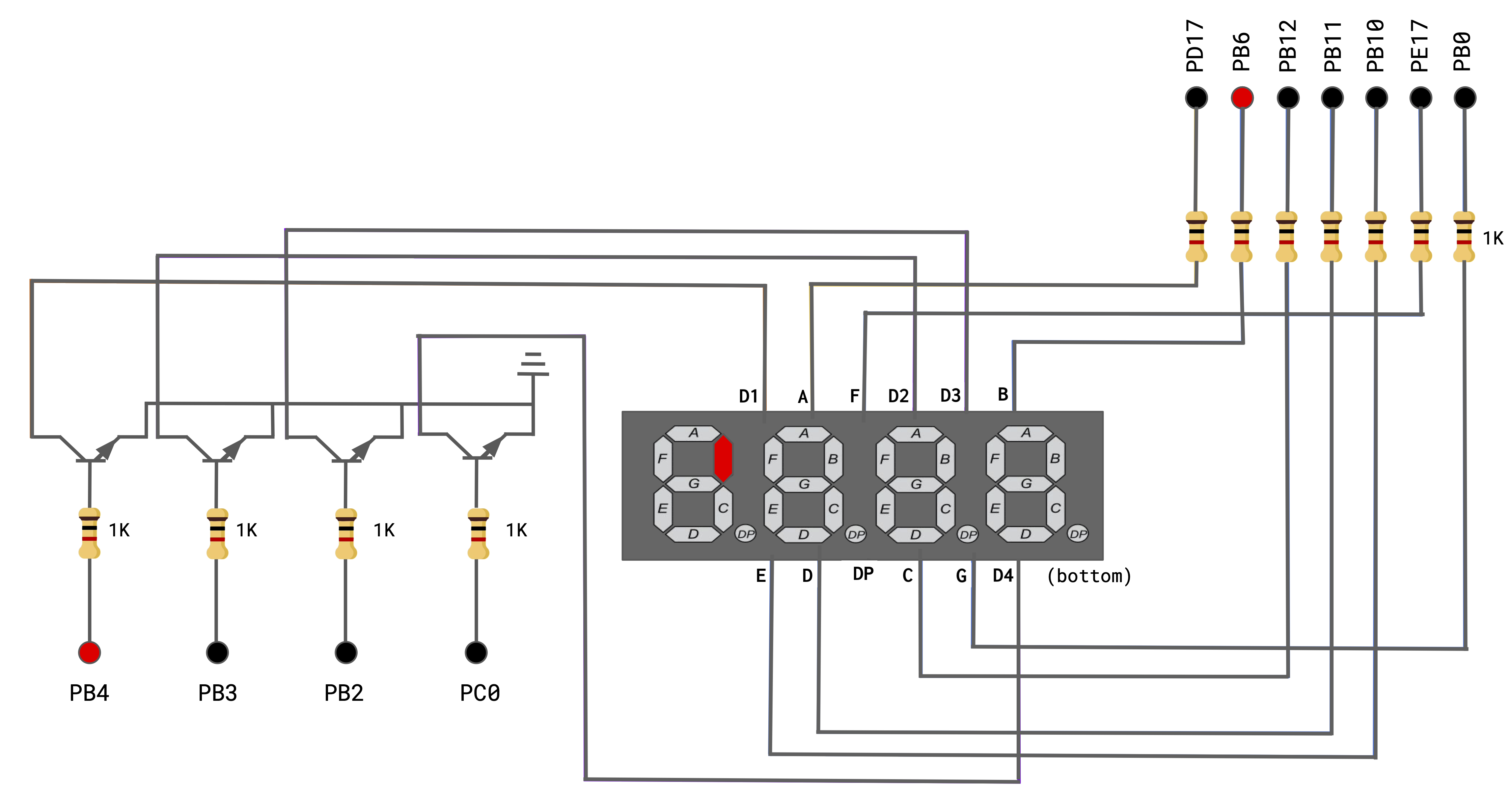 The assigned GPIOs appear to be random, but if you compare it to the refcard, I think you'll see the method to our madness. You can also use
 pinout.pyto label the clock connections:$ pinout.py clock - The dots in the upper right of the schematic are the segment connections. Add male-to-female jumpers connecting the seven header pins for gpios
{PD17, PB6, PB12, PB11, PB10, PD11, PD13}to the 1K current-limiting resistors on your breadboard that connect to segments A - G of the display unit.PD17controls segment A,PB6controls segment B, and so on. - The dots in the lower left of the schematic are for the digit connections. Add male-to-female jumpers connecting the four header pins for gpios
{PB4, PB3, PB2, PC0}to the 1K resistors at the base of the transistors controlling digits 1 through 4.PB4controls the first digit,PB3the second digit, and so on. - Connect
PD12to read the state of the button. The button is connected to the power rail through a 10K pull-up resistor; pulling the default state high. Pressing the button grounds the circuit, bringing the reading low. - Here's a photo of our clock breadboard connected to the Mango Pi.
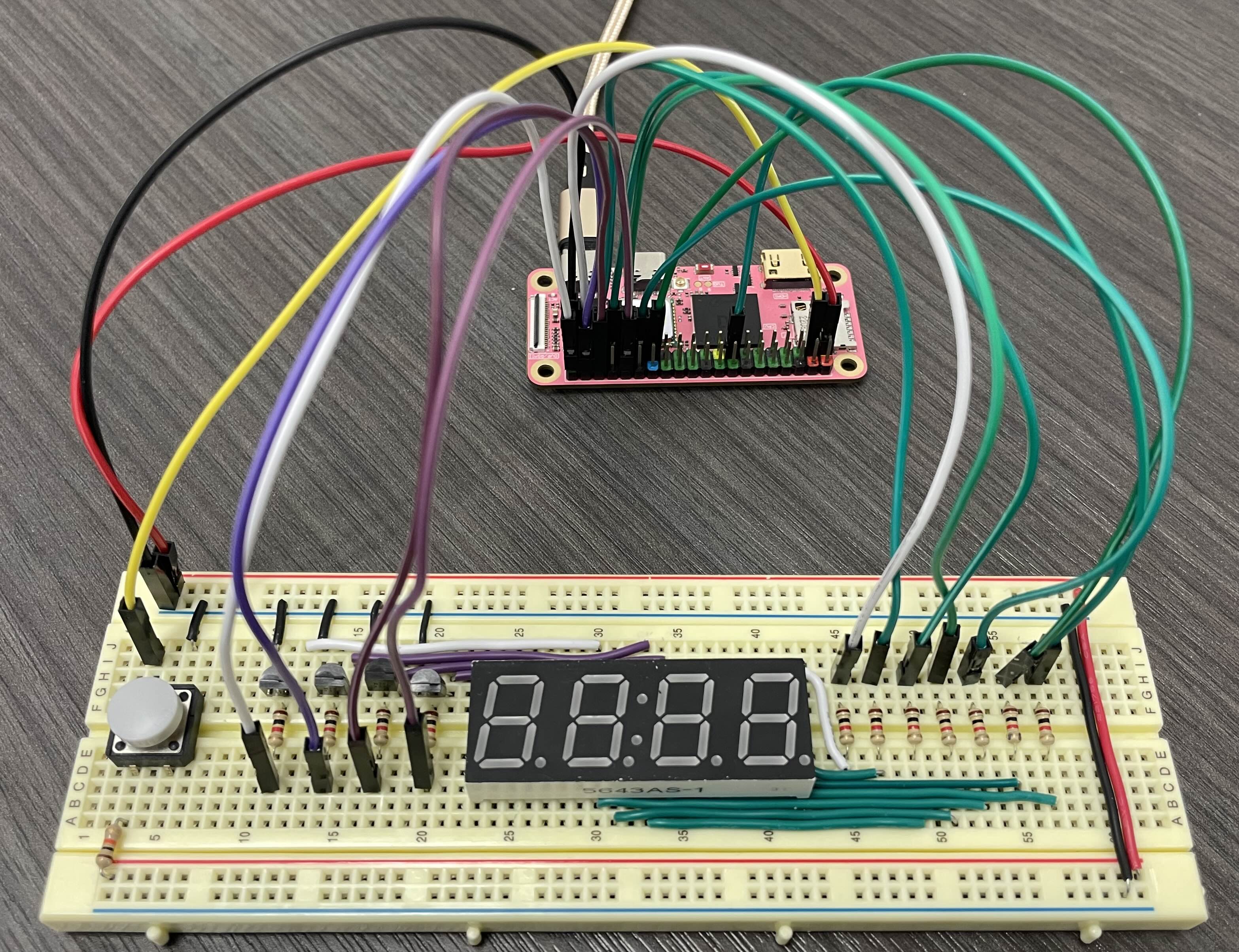
Using gpio_xfel.py for testing
You wil want to test the connections before moving on. One of our section leaders Daniel James wrote a cool tool gpio_xfel.py to control the gpios by using xfel to peek and poke the gpio registers – neat! Try it out now:
$ gpio_fel.py
A tool for interacting with the GPIO pins on the Mango Pi

Usage: gpio_fel.py subcommand

Subcommands:
    read pin          - Read pin state
    write pin val     - Set pin state (val can be high,1,true,low,0,false)
    getfn pin         - Get pin function
    setfn pin fn      - Set pin function (fn can be 0-15,input,output,alt2-8,interrupt,disabled)
    show [pin] ...    - Show function and state of one or more pins (if no argument, show all pins)

$ gpio_fel.py show     # show state of all gpio pins
[PB0]  fn: 15 (Disabled)
[PB1]  fn: 15 (Disabled)
[PB2]  fn: 15 (Disabled)
...
The blue ACT led is controlled by gpio PD18. Below shows how to use gpio_fel.py commands to turn on the blue led:
$ gpio_fel.py setfn PD18 output    # set function of gpio to output
$ gpio_fel.py write PD18 1         # write gpio high
Using gpio_fel.py is handy way to verify your clock wiring. The diagram below labels each segment/digit with the controlling gpio.
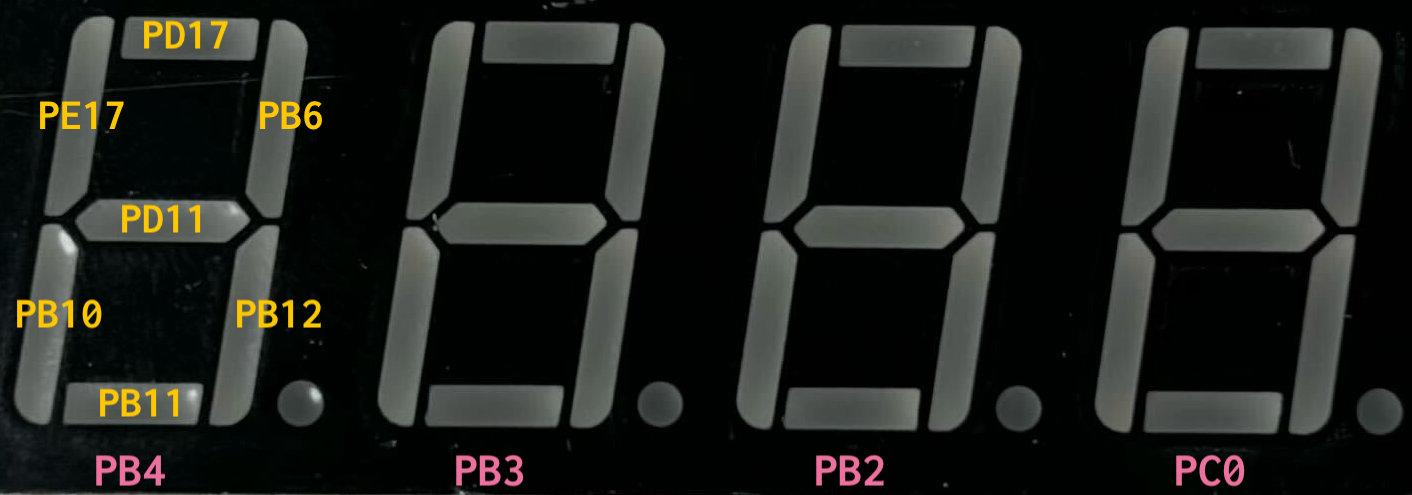
To light the middle segment of digit 4 on your clock, you must turn on both PD13 and PC0:
$ gpio_fel.py setfn PD13 output
$ gpio_fel.py write PD13 1        # turn on middle segment
$ gpio_fel.py setfn PC0 output
$ gpio_fel.py write PC0 1         # turn on digit 4
Did it light up? Cool! Continue using gpio_xfel.py to turn on and off each of the seven segments and the four digits. These tests confirm your hardware – when you are done, you know your circuit and connections are certified awesome!
With confidence in your hardware, you are ready to try a similar test on your software: calling your gpio functions to light the segments. Review the code in the provided function test_breadboard_connections so that you know what to expect if it is working correctly. Uncomment the call to test_breadboard_connections and use make test to build and run. Because you previously confirmed the hardware, any new problems that come up in this test must originate from faulty code in your gpio module.
Pause a moment to appreciate why it is valuable to separate testing the hardware from testing the software. Imagine you were in a hurry and figured it would be quicker to test both simultaneously by jumping straight to test_breadboard_connections without first checking the hardware separately. But when a segment doesn't light up, how will you know what's at fault: is the problem hardware, software, or both? Sounds like there would be some painful debugging to sort that out.
Give yourself a pat on the back! You've constructed an complex circuit and used your nifty gpio module to confirm all works correctly. Snap a photo of your finished hardware setup, copy the file to the assign2 directory in your repo. Add the file and commit to include it with your submission to show us your beautiful handiwork.
4. Display a digit
You are now ready to start on the software for clock application.
In clock.c, create an array of 10 elements, one for each decimal digit. Each array element should
be a byte (8-bits). C has no byte type, but unsigned char suffices (there is also a uint8_t defined in <stdint.h> if you prefer it). The array entry at index 0 is the bit pattern for the digit 0, and so on for the digits 1 throgh 9.
Bit 0 (the least significant) will represent segment A, bit 1 segment B, and so on. If a bit is set, then that segment should be lit. For example, digit 0 consists of segments A-F, so its bit pattern is 0b00111111. Digit 1 consists of just segments B and C, so its bit pattern is 0b00000110. (0b is the prefix that introduces a binary number literal, just as 0x prefixes a hexadecimal literal). Bit 7 (the most significant) could be used to represent DP but since we are not using the decimal point in this assignment, bit 7 will always be 0.
Write a function that turns on the segments for a given digit on Digit 1 and call it from the main() function of clock.c. Verify that your bit patterns are correct by displaying digits from 0 to 9 and visually confirming.
Use make run to build and run your clock application.
5. Write display refresh loop
The GPIO pins that drive the seven segments A to G are shared by
all four digits on the display. There is no way to turn on the display segments to show a 5 on the leftmost digit while simultaneously showing a 3 on the rightmost digit.
Instead of actually displaying a simultaneous 5 and 3, you'll accomplish the same effect with a display refresh loop that iterates over the digits one-by-one in quick succession. It turns on the segments for the leftmost digit, very briefly holds before turning them off, and repeats the process for each of the other three digits. You might think that turning a digit on and off would cause it to flicker. The key is to sequence through the digits so fast that our eyes cannot see them changing. Good thing computers are fast!
Implement the display refresh that lights each of the four digits in quick succession. Use the timer functions for the hold time per digit. At first, use a long-ish delay so you have time to observe and confirm each digit. Then change it to be so fast that your eyes don't see the flicker.
6. Implement countdown clock
The clock operates as a countdown clock. The display unit shows the time remaining expressed in minutes and seconds with leading zeros, e.g. "1234" is 12 minutes and 34 seconds and "0205" is 2 minutes and 5 seconds.
The default duration is 67 seconds (six-seven = 1 minute and 7 seconds = 107). You can run using a different duration via an optional make argument. The command make run DURATION=20 will run the clock using a duration of 20 seconds. (For the curious: review Makefile and clock.c to see how we implemented this mechanism!) Your clock should work for any duration up to 5999 (5999 seconds is 99 minutes and 59 seconds).
The clock starts in a paused state, waiting for the user to click the button which starts the countdown. The display is continually refreshed to show the count of minutes and seconds remaining. Confirm that the timer is calibrated correctly by observing that the clock is counting down at the right rate according to your watch or computer.
When the count reaches zero, announce the end by blinking the display on and off (or apply your own creative touch to display a message or pattern).
This video shows countdown clock of 10-second duration:
Mission accomplished! You have wired up a complex breadboard circuit, written two reusable library modules and a clock application, as well as practiced an effective methodology for testing. Be sure to show off your spiffy new clock to your followers (but not to the TSA next time you pass through airport security…).
Troubleshooting
Here are some problems that have "bugged" students in the past, presented here to help you troubleshoot:
- Double-check your constants, especially addresses. The wrong number of zeros or a missing prefix can cause a lot of grief. A numeric constant with no prefix is decimal. If you intend hex, be sure to prefix with "0x", e.g.
0x02000000. The prefix for binary is "0b", e.g.0b10110001. - Take care with your bitwise operations. Try out Max's Bitwise Explorer as a helpful tool for practice and visualization.
- A case in a C
switchstatement must end withbreakor you will have unintended fallthrough to other cases. https://stackoverflow.com/questions/29915854/why-does-c-require-breaks-in-switch-statements - Make sure you declare the contents of hardware peripheral registers as
volatile, otherwise the compiler might optimize away repeated reads/writes. If you don't understand why this is important, ask us in lecture, lab, or office hours – it's important and also pretty cool! - If you connect a full 3.3V to a segment LED or transistor base without the protection of a current-limiting resistor, it can fatally damage the component. Grab a replacement from the spare parts bin in the lab room or ask us for help in office hours.
- More critically, a connection from voltage (e.g. Pi's power pin or a gpio output set to high) direct to ground creates a short circuit which can send your Pi to an early grave. Always have your Pi unplugged when rearranging wires. (Rule of thumb: if Pi's green light is lit, "back off", especially if you have wire or a metal tool in your hand) After you finish rewiring, trace your circuit one more time to confirm it is correct before you power back up.
Style reflection
The style reflection for this assignment considers aspects of modular design and use of non-local variables. Write your answers to the prompts in the file style_reflection.txt and submit with your assignment.
Extension
If you enjoyed the core assignment and want to go further, consider trying out an extension. Now that we have moved up to C, we have more expressive tools for designing abstractions, so there is one fruitful avenue for exploration. And your awesome gpio module can interface with many other devices beyond LEDs and push buttons, opening up all sorts of neat things you can build. Where will your curiosity take you?
- design and implement re-usable module for 7-segment display
- encapsulates inner workings of refresh, how digits mapt to segments, etc
- make into tidy package that offers clean interface for client to config display and refresh 4-digit value
- clock client app becomes simple loop that asks 7-segment to refresh current value
- (later in quarter we will learn how to continually refresh via timer interrupt, for now client uses manual loop)
- use a serial-in parallel-out shift register to control clock segments
- 8-bit SPIO controls eight outputs using just three gpios (latch, shift, data)
- reduces number of individual gpios, simplifies wiring
- re-use clock breadboard as display for different purpose/application
- digital counter that shows count of button presses? scoreboard for 2-player game (2 digits per player)? show line number of failed assert from test program so you don't have to guess?
- extend gpio module with additional features
- add control of internal resistor
- read further into GPIO chapter of D1-H user manual to learn how to activate internal resistor. Add functions to set pull state to up/down/none, refer to gpio_extra.h to match our recommended interface. Now use in place of hardware pull-up resistor!
- add stable read function to debounce noisy input
- while reading a button and watching for state change, single press may register as multiple events due to physical mechanism making and breaking contact in rapid succession before settling into stable open or closed state. Implement a "debounced" read that smooths out the flutter and waits for state to stabilize before reporting current value.
- add control of internal resistor
- learn about other gpio devices and use them in clock or another application
- see list of components we have on hand to loan
- soup up your clock by adding:
- input device to pause/resume? change countdown duration before starting?
- output device for visual/audio as countdown progresses? alarm at end?
- write a simple game or interactive application that uses inputs/outputs in some cool way (Simon? snake? reaction timer?)
- for the more hardware-inclined
- use a piece of protoboard to solder up a robust and permanent clock circuit (share with CAs to use for grading!)
- go old-school on that protoboard using wire wrap for gas-tight connections that have built-in strain relief
- design a custom PCB we could send out to fab (pretty please! big ask)
- OR something else entirely, come by office hours to brainstorm your ideas with us
Before diving into the extension, have your completed all core tasks and commit, tag, and push. This ensures your assign2-submit tag is a known good place for grading the core features. You also can nab the on-time reward by making your core submit on or before due date.
Edit extension.c for your extension program and use make extension to compile and run. Use the same git workflow as core, i.e. edit on dev branch, regularly commit and push. Edit the README.md file to tell us what you did for the extension and how it works. Apply tag assign2-extension to submit when done.
The grading review of all extensions is done in-person, you'll give us a demo and share about what you learned. See times for extension demo/grading on OH schedule. We are excited to see what you come up with it!
The same guidelines apply to the extension as to the core: it is fine to use online resources and generative AI tools to answer your questions and help you learn new things, but not cool to use it to write or fix your code.
Submitting
The steps to follow for submit are given in the git workflow guide.
The deliverables for assign2-submit are:
- a photo of your completed breadboard
- implementations of the
gpio.candtimer.clibrary modules - unit tests for both modules in
test_gpio_timer.c - application program
clock.c README.mdwith any information you want to share with your grader- your responses to the prompt questions in
style_reflection.txt - all
assign2-submitfiles commit/tag/push by due date or before end of grace period
Additional for assign2-extension:
- extension program
extension.c README.mdwith information on your extension- use tag
assign2-extension, commit/tag/push files by end of grace period
Grading
To grade this assignment, we will:
- Verify that your submission builds correctly, with no warnings. Clean build always!
- Run our automated tests on your
gpioandtimermodules. - Observe your countdown clock running on a Mango Pi wired to a clock breadboard and visually confirm its operation. Our hardware setup will be configured exactly as specified in the schematic.
- Admire the photo you submit of your completed breadboard.
- Go over the unit tests you added to
test_gpio_timer.cand evaluate them for thoughtfulness and completeness in coverage. - Review your completed style reflection.
Our highest priority tests will focus on the core features for this assignment:
- Essential functionality of your library modules
- Set/get the function on any valid pin
- Read/write to any pin
- Reading the timer value, timed delay
- Clock application
- Countdown clock works correctly
The additional tests of lower priority will examine less critical features, edge cases, and robustness. Make sure you thoroughly tested your for a variety of scenarios!
Note: Build warnings/errors We expect your code to compile cleanly with no warnings or errors. Warnings are the way the compiler draws attention to a code passage that isn't an outright error but appears suspect. Some warnings are mild/harmless, but others are critically important. If you get in the habit of keeping your code compiling cleanly, you'll never miss a crucial message in a sea of warnings you are casually ignoring. The provided makefile is set to treat warnings as errors, and your code will be graded in the same way.
Our grading process
- We run automated grading tests against the submissions and CAs do a qualitative review of your code and tests. We use GitHub issues to report tests that were not passed.
- Our automated grading tests are organized by priority. Higher priority tests are considered more significant in grading.
- P1 "Essential" tests exercise core functionality that is critical to the system's operation. Your system won't be fully usable until these high priority issues are addressed.
- P2 "Comprehensive" tests thoroughly exercise the full range of functionality including lesser-traveled features.
- P3 "Just Mention" is used for small concerns as a misbehavior in an obscure edge case or minor issue of polish.
- We have a revise and retest policy for library modules. We will file GitHub issues for any test failure that is eligible for revision, and you may submit bug fixes for retest. Commit and push changes on your
devbranch and tag the revised commit withassign2-retest(Do not move the originalassign2-submittag!) Once a week, the grader will re-run the automated tests on submissions taggedassign2-retestand update to show passing results on corrected issues. - We accept revisions for priority 1, 2, and 3 automated unit tests on your library modules. There is no retest/resubmit for extensions or tests that are manually evaluated (e.g. clock). Such tests are run only against your original submission, marked with the
assign2-submittag.
By the end of the quarter, we want your library modules to have passing results on all Priority 1 tests. Lower priority tests can be fixed at your discretion and will contribute positively to your course grade.
Good habits == good results
We encourage you to consciously develop habits that will serve you well in this course and going forward. Here are a few we recommend you start today:
- Practice with your tools and work to establish comfort with your environment. Be alert to where you have rough spots in your workflow,and make an effort to smooth it out. This might take the form of learning additional editor features, becoming more facile with the command-line, or customizing your environment more to your needs. Share your tips on Ed and ask for advice from others!
- Make frequent git commits to record a snapshot of your ongoing work. This gives you an audit trail of your progress in your local repo and each commit is a place to compare or return to should anything go astray. When at a clean stopping point, use git push to sync your local history to your GitHub remote repo. You can think of your remote repo as your "off-site" backup that ensure that all of your hard work is safely recorded.
- When writing unit tests, do not comment out tests to de-activate them once you have confirmed they are passing. If you keep previous tests active so that they execute on every future run of the test program, this alerts you if you accidentally introduce a regression, i.e. a change causes a previously passing test to now fail.